
If you're not already viewing thumbnails in Windows Explorer, Right-click in an open area inside Windows Explorer and, in the popup menu that appears, select View | Thumbnails. If you're not happy with the size or quality of the thumbnails, you can use Tweak UI to reconfigure those properties.
Tweak UI is one of a group of utilities called "PowerToys" that you can download from Microsoft's web site for free. TweakUI makes it easy to configure several Windows Interface options that are difficult to find or are not available in Control Panel.
Download from the 147 KB file TweakUiPowertoySetup.exe from Microsoft Downloads
• PowerToys are not supported by Microsoft.
To install Tweak UI, double-click on downloaded file's name to start the setup program. The setup program puts TweakUI.exe in the C:\WINDOWS\system32 folder and puts an item in the Start menu.
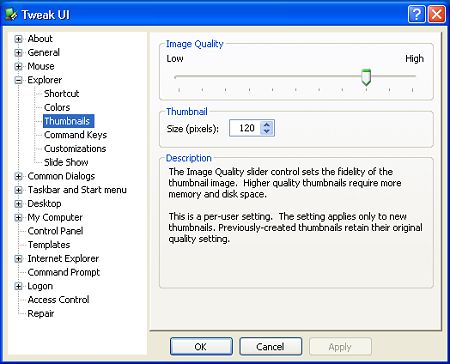
To run Tweak UI, select Start | Programs | Powertoys for Windows XP | Tweak UI. In the left pane of the program's window, open the Explorer branch and click on Thumbnails. In the right pane of the program's window, use the spin control to set the thumbnail size and use the slider control to set the thumbnails quality (sharpness).
• Configuring for large size, high-quality thumbnails may place a burden on your computer's resources. Setting the size and quality is a compromise based your system's capability and your visual requirements.

More Windows Tips:
• Backup Your Windows XP Activation Files
• How to Use Windows 7 Built-in Speech Recognition
• How to Disable Windows Explorer's Annoying Tooltips Popups
• Three Ways to Force a Program to Close
• How to Add and Remove Desktop Gadgets
• Add the Undo Button to File Explorer in Windows 10
• Keep Laptop Running when You Close Display in Windows 7
• Change the Default Program for a File Type
• How to Set up an Ftp Server on Windows Xp Professional
• How to change a Folder's Icon